
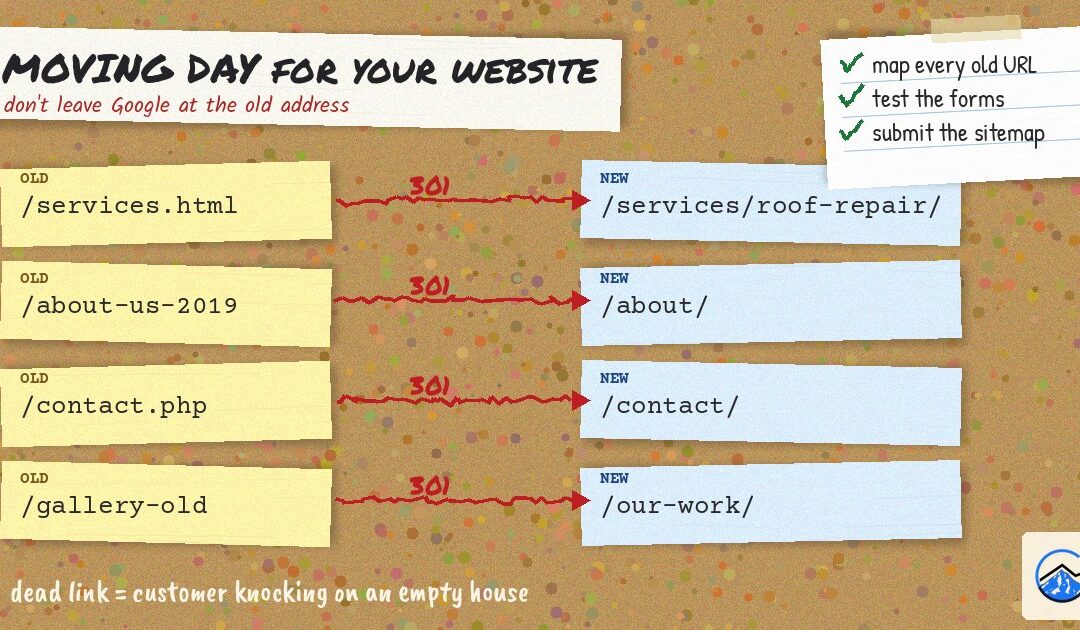
Here’s a fun way to lose a chunk of your website traffic overnight: launch a gorgeous new site, delete the old pages, and assume Google will “figure it out.” Google is smart. It is not a mind reader. If the page it has been sending people to for three years suddenly turns into a “404 Not Found,” Google just sees a dead end. So does your customer.
This week on the blog is all about website design and development. Our last post covered what makes a good small business website in the first place. Today is the sequel nobody asked for but everybody needs: how to redesign or rebuild a site without accidentally setting your search visibility on fire.
Refresh vs. redesign vs. rebuild (they’re not the same project)
People say “we need a new website” to mean about four different things. Knowing which one you’re actually doing tells you how careful you need to be.
- A refresh is new paint. Updated photos, cleaner fonts, rewritten headlines, maybe a new color or two. Same pages, same web addresses. Low risk.
- A redesign changes the layout, navigation and often the content. Pages get merged, split, renamed or moved. Medium risk, mostly because URLs tend to change along the way.
- A rebuild or platform move swaps what’s under the hood, like moving from an old site builder to WordPress, or changing your domain name. This is the “moving to a new house” version. Highest risk, and the one that needs the most planning.
The more of your web addresses change, the more this post matters. If nothing about your URLs changes, congratulations, you can skim. Well, skim the checklist at least.
Why a redesign can hurt your Google traffic
Over time, search engines learn your site: which page covers which service, which pages other sites link to, and which ones answer which questions. That history is tied to specific URLs. When those URLs disappear without a forwarding address, a few things can go sideways:
- Old pages return errors. Anyone clicking an old Google result, an old link from another site, or a bookmark hits a dead page.
- Content that ranked gets cut. That “boring” FAQ page you deleted? It might have been quietly bringing in calls.
- The new site is hidden by accident. Sites are often built on a test copy that’s set to keep search engines out. If that setting survives launch day, your shiny new site is invisible. (Yes, this happens. More than anyone likes to admit.)
- Tracking breaks. The analytics tag, call tracking or form notifications don’t make the move, so you can’t even tell what happened.
None of this is mysterious. It’s just easy to skip when everyone’s excited about the new design.
Step 1: Make a list of everything you have now
Before anyone touches a design file, take inventory. This is the least glamorous step and the most important one.
- List every page on the current site. Your XML sitemap is a good starting point, and so is the Pages report in Google Search Console if you have it set up.
- Note which pages actually get visits. Google Analytics and the Search Console Performance report show which pages bring in traffic and which search terms they show up for.
- Note which pages other websites link to. Links from other sites are valuable, and you want them to keep pointing somewhere useful.
- Save a copy of your current titles, descriptions and headings. If a page is doing well, you’ll want to know what it said before someone “improves” it.
If you haven’t figured out the words your customers really use yet, our post on keyword research for local businesses is worth a read before you start rewriting anything.
Step 2: Decide what happens to every old page
Every page on your list gets one of three fates:
- Keep it at the same address. The easiest option. If a URL is working, there’s often no good reason to change it.
- Move it and redirect it. If the address changes, set up a 301 redirect (a permanent, server-side redirect) from the old URL to the new page that covers the same thing. Google’s own site-move guidance recommends permanent redirects and suggests keeping them in place for at least a year.
- Retire it. If a page truly has no replacement, like a service you stopped offering, it’s fine to let it go. Redirect it to the closest relevant page if one exists. If not, a proper “not found” response is honest.
One shortcut to avoid: redirecting every old page to your homepage. It feels tidy. To a visitor looking for “water heater repair,” landing on a generic homepage is just a dead end in a nicer outfit, and Google may treat those redirects as if the page were simply gone.
Put all of this in a simple spreadsheet: old URL in one column, new URL in the next. That spreadsheet is your redirect map, and it’s worth its weight in gold on launch day.
Step 3: Build somewhere private, then test like a skeptic
New sites are usually built on a staging copy, a private version of the site where things can break without anyone seeing. That’s good. Keep it password-protected or blocked from search engines while you work.
Before launch, go through the new site like a customer who is having a bad day:
- Open it on a phone. Then on a different phone. Most of your visitors are probably thumbs-first. (Speed matters here too, see why your website is slow on phones.)
- Tap every phone number and make sure it starts a call.
- Submit every form and confirm the message actually lands in the right inbox.
- Click every menu item and every button. Look for empty pages, placeholder text and that one “Lorem ipsum” paragraph that always survives.
- Check that your business name, address, phone number and hours match what’s on your Google Business Profile.
Step 4: Launch day checklist
Launch day is not the day to “see how it goes.” Have the list ready.
- Turn off the “keep search engines out” setting. In WordPress it’s under Settings, Reading: “Discourage search engines from indexing this site.” Make sure it’s unchecked. Also check that your robots.txt file isn’t blocking the whole site.
- Put the redirects live and spot-check a bunch of old URLs to confirm they land on the right new pages.
- Confirm HTTPS works everywhere, with the padlock showing and no “not secure” warnings.
- Reconnect tracking. Analytics tag, conversion tracking for calls and forms, anything you used before.
- Submit your updated XML sitemap in Google Search Console, and use the URL Inspection tool on a few of your most important pages.
- Update your links elsewhere. Your Google Business Profile website link, social media profiles and directory listings should point to the right pages.
Step 5: Keep an eye on things after launch
Some movement in search results after a big change is normal while search engines recrawl and process the new site. The goal isn’t to panic at every wiggle. It’s to catch real problems early.
- Watch the Pages report in Search Console for new “not found” errors and fix any old URLs you missed.
- Compare calls, form fills and traffic to the weeks before launch.
- Leave the redirects alone. Seriously. Future you will want to clean them up. Tell future you to relax.
Not sure where your current site stands before you start? Request a free SEO audit, or grab our free local SEO checklist and work through it before and after the switch.
How Three 7 Projects can help
Planning, designing and building websites, including redesigns of sites that already have some history with Google, is what our website design and development service is for. If you’d rather not juggle redirect spreadsheets and staging sites yourself (very reasonable), that’s where we come in. We work with businesses across the Portland metro and Southwest Washington, including Gresham, Lake Oswego, Tigard, West Linn, Milwaukie and Clackamas. The full list is on our service areas page.
Why we want to help
Because a new website should feel like a win, not like the week your phone mysteriously stopped ringing. You put real money and time into a redesign. It should make your business easier to find and easier to choose, not reset everything you’ve built online back to zero. We’d rather help you get the boring parts right so the exciting part actually pays off.
How to become part of the 37 Project family
No secret handshake required. You reach out, we have an actual conversation about your business, your current site and what you want the new one to do, and if it’s a good fit, we work together. That’s it. Call 503-799-0407 or send us a note on the contact page. Extra credit if you’re mid-redesign and slightly panicking. We like those calls.
Frequently asked questions
Will a website redesign hurt my Google rankings?
It can, but it doesn’t have to. Most traffic losses after a redesign come from changed URLs without redirects, deleted pages that used to bring in visitors, or a new site that’s accidentally blocking search engines. Planning those pieces ahead of time lowers the risk a lot.
What is a 301 redirect?
A 301 redirect is a permanent redirect that sends visitors and search engines from an old web address to a new one. It tells Google the page has moved, so people following old links and old search results still end up in the right place.
How long should I keep redirects after a redesign?
Google’s site-move guidance suggests keeping redirects in place for at least a year. In practice, many sites leave them up indefinitely because old links and bookmarks keep getting used.
Should I redirect old pages to my homepage?
Generally no. Redirect each old page to the new page that covers the same topic. If there’s no close match, a proper “not found” response is better than sending everyone to the homepage.
Do I need to tell Google about my new website?
If you use Google Search Console, submit your updated XML sitemap and inspect your most important pages after launch. If you changed your domain name, Search Console also has a Change of Address tool for that situation.